TRANSFER IMAGES FROM YOUR COMPUTER TO THE
VIRTUAL DESKTOP (WEB CLIENT)
Use this when you’re in the Omnissa Horizon Web Client and need to move screenshots or photos into the VM.
How to Upload (Web Client):
1. While connected to your virtual desktop in the browser, click the Transfer Files icon on the top toolbar
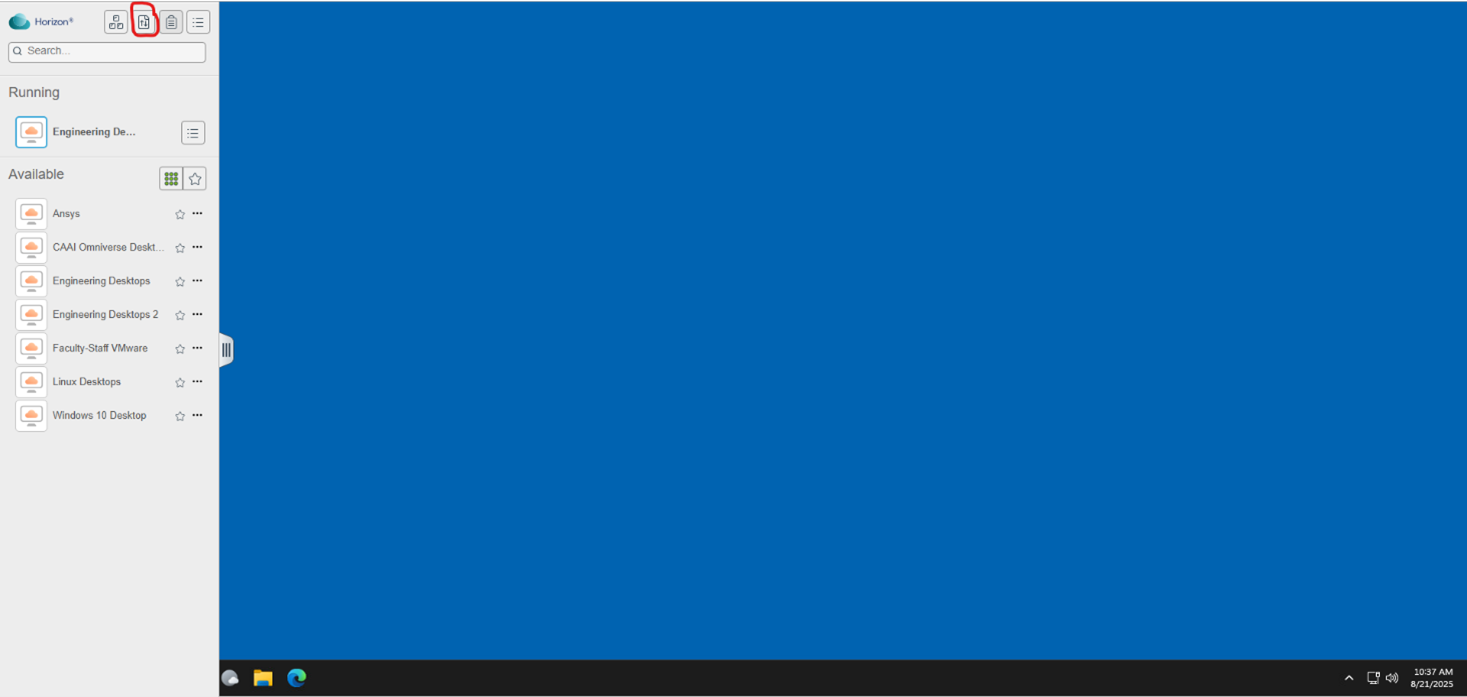
2. In the Transfer Files window, make sure the Upload tab is selected.
3. Drag & drop your image files into the window or click Choose Files and select them (JPG/PNG/BMP/GIF, etc.).
4. Wait for the upload to finish.
5. Your files will appear inside the VM in My Documents
(path: C:\Users\<your-FAU-NetID>\Documents or %USERPROFILE%\Documents).
6. Open the file from there in your app (e.g., insert into Word, SolidWorks, MATLAB, etc.).