Method 2: OMNISSA Horizon WEB CLIENT
Using this method, you do not need to install an application. You will use a web browser to connect to virtual desktops.
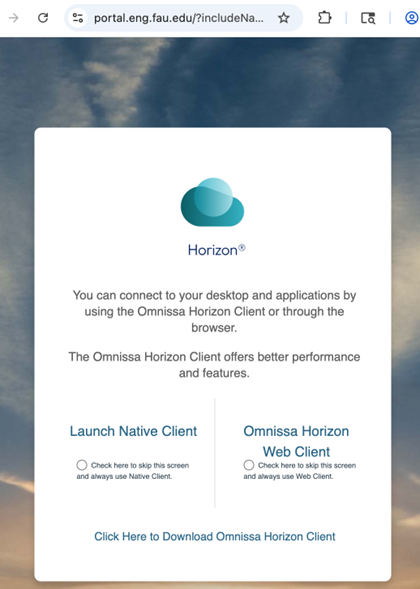
1. Visit: https://portal.eng.fau.edu .
2. Select Omnissa Horizon Web Client, and it will redirect to the new screen if the browser doesn't have an authentication cookie and needs to complete a first-time login.
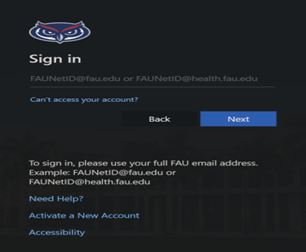
3. When prompted, enter your full FAU email address, click Next, enter your password on the next screen, and then click Sign In.
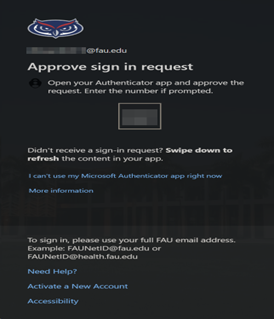
4. You will see a screen asking you to approve the sign-in SSO login request.
- Open the Microsoft Authenticator app on your mobile device
- Approve the sign-in request
- Enter the number shown on the screen if prompted
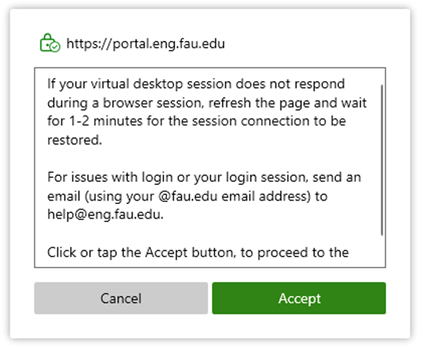
5. Click or tap the Accept button to proceed to the login form.
6. Enter the FAU Net ID password for the second time and click on Login.
7. Select Engineering Desktops.
8. It will connect to your virtual desktop session. Please wait for the desktop and applications to load completely, then your virtual desktop is ready for use.
9. While connecting, you may be prompted to choose between full-screen or dual-screen mode. Select the option that best fits your setup and preferences.