maintaining vIRtual Desktops
After completing your work on your Virtual Desktop, it is strongly recommended that you sign out of your session properly. This is to ensure your session closes cleanly, so you can reconnect with no issues later.
✅ How to Sign Out
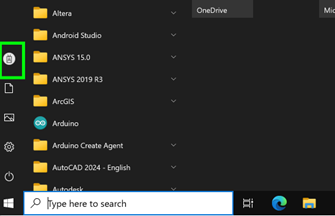
- Inside the virtual desktop, click the Windows Start menu (bottom-left corner)
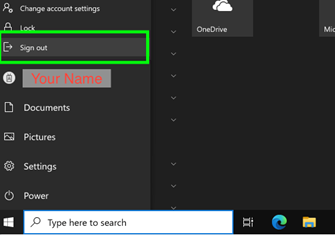
- Click your username/profile icon
- Select Sign Out from the menu
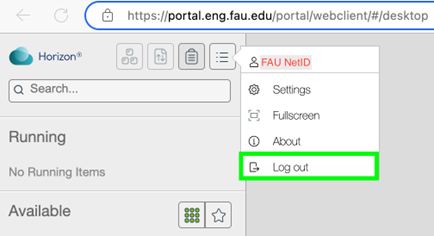
- Ensure to also log out from Omnissa Horizon
What Happens If You Don’t Sign Out?
- The system will wait 15 minutes, then lock the virtual desktop screen.
- You can still reconnect to the same virtual desktop session during this time.
- If you do not return, the system waits another 20 minutes, then logs you out automatically.
- If you close your web browser or your computer goes to sleep (common on laptops when the lid is closed or on battery), your session will be immediately disconnected.
💡 Many laptops enter sleep mode after just 5–10 minutes of inactivity to save battery. To avoid unexpected disconnections, keep your device active or adjust your power settings.