Urban Planning Virtual Desktop Guide
The Department of Urban and Regional Planning (URP) provides off-campus access to a “Virtual Lab” of computers. This virtual lab provides students with remote access to URP software applications and network resources.
Instructions on Accessing the Virtual Lab
Browser
In order to use Apporto, all you need is a browser and a reasonably fast internet connection.
Google Chrome is the recommended browser for Apporto. You may download the latest version of Chrome here: www.google.com/chrome
Internet Connection
A reliable internet connection is important for optimal performance in Apporto.
If you have a poor network connection, you may notice slowness or a lag in response and images may appear pixelated. If your network connection is interrupted you may even lose unsaved work.
The quality of your network connection has two parts: bandwidth and latency. Bandwidth is typically not an issue for Apporto. Latency is the more important factor. Latency of < 100 ms is ideal for good performance in Apporto.
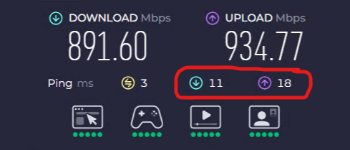
To test your bandwidth and latency, you may use www.speedtest.net. Latency upload and download numbers can be found in the circled area of the result as shown below.
Login to Apporto
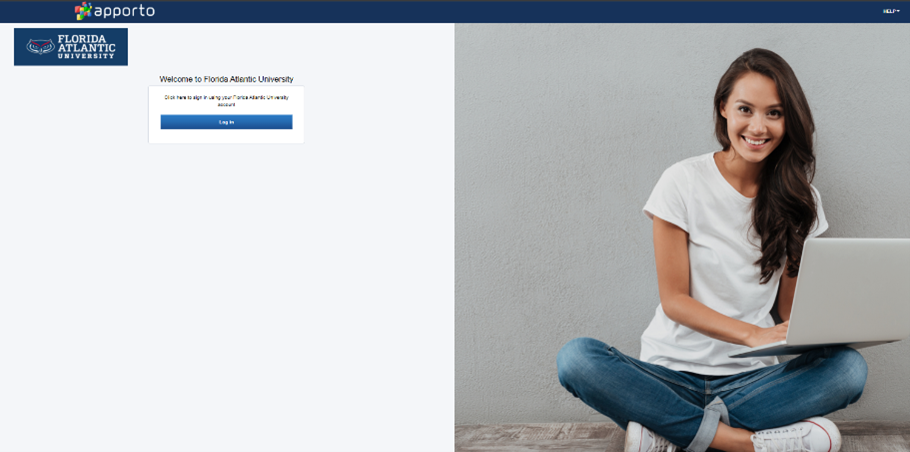
Logging in with Single Sign-on (SSO) is the most common way to login to Apporto. Using your preferred web browser, navigate to the web address
Click Log In to access your university Login page. Enter your Single Sign-On (SSO) username and password. Authenticate through DUO. The App Store displays.
Navigating the App Store
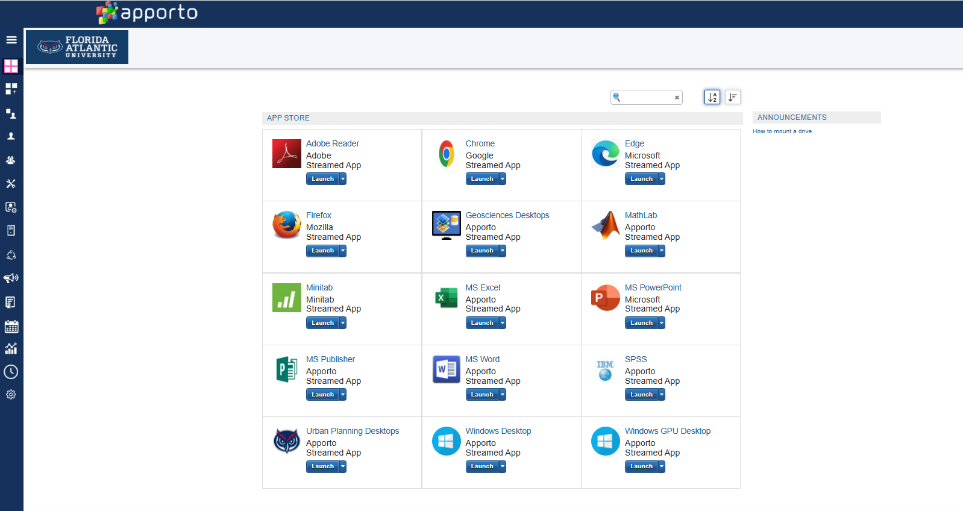
The App Store is where you can access all of the applications and desktops available to you via Apporto. For each application or desktop, you will see the name of the application and Launch button.
Select your App or Desktop
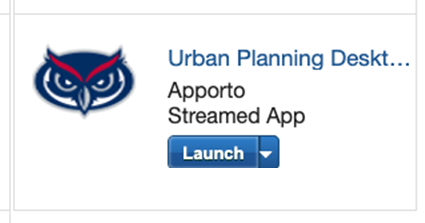
Locate the desired app or desktop and click Launch
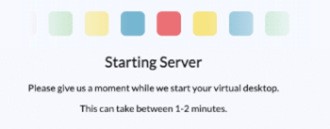
You will see a “Starting Server” message.
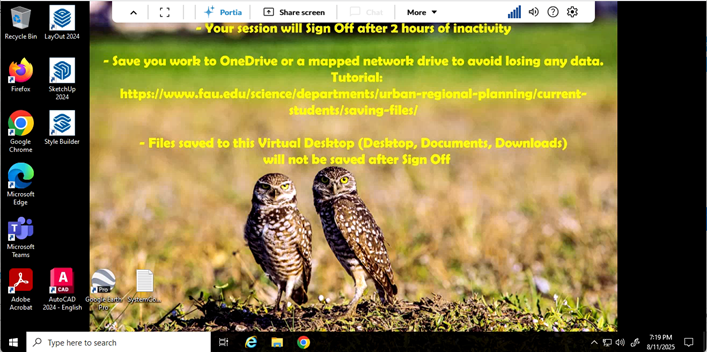
The selected app or desktop opens in a new browser tab.
Use Apps and Desktops
The Menu

Available menu options are displayed as icons (buttons) in the top menu bar. Hover your mouse over an icon to see tooltip text explaining what the menu option is.
Click the up arrow ^ to hide the menu bar. Click the down arrow to unhide the menu bar.
Change Display Mode
Click the  icon in the top menu bar to toggle the display to full-screen mode.
Press and hold the <Esc> key to return the display to normal mode. In full screen mode, the menu bar is hidden to maximize screen real estate. Click on the down arrow to access the menu.
Use Multiple Monitors
To use multiple monitors, click the More menu option and select Second Monitor
to open a second browser tab. Drag the tab to another monitor and resize as needed. The desktop view will span both tabs/monitors. Then, you can drag applications to either monitor. You may use up to three monitors.
Turn Sound On/Off
Click the Sound button  to turn sound on.
Click again  turn sound off. By default, sound is turned off.
Network Indicator
View the Network Indicator to gauge the strength of your network connection. The number of bars depends on network latency (the amount of time in milliseconds for response from the server).
Settings
Click the Settings menu to access screen scaling, resolution, microphone and clipboard options.

By default the Apporto cloud desktop will match the scale of your local device. If you want desktop images and text to appear larger, you may increase the scale up to 250%. Increasing the scale may reduce system responsiveness though, since more data is transferred from the cloud to your browser.
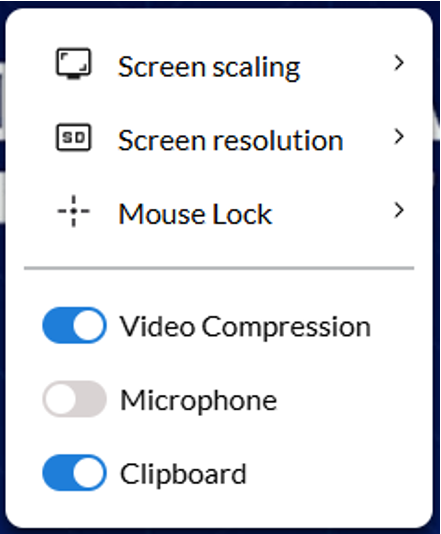
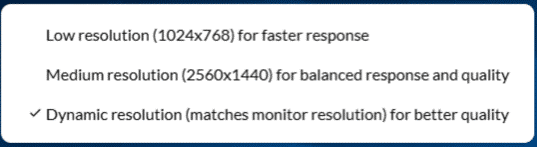
By default, the Apporto desktop displays at a high resolution for optimal image quality. The resolution is dynamically adjusted when you change your browser size (for example by toggling to full screen mode).
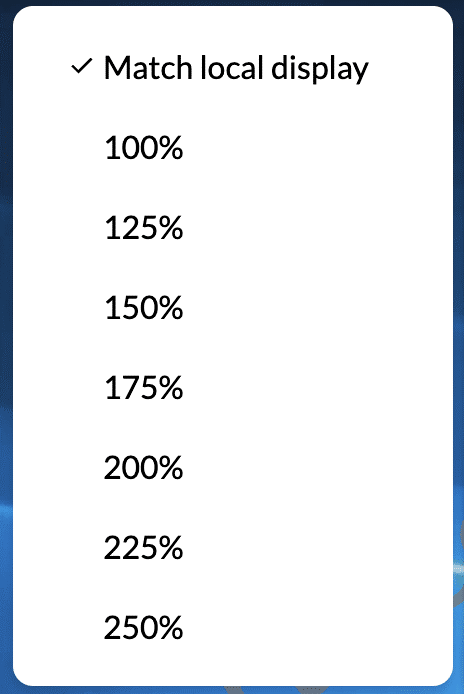
If you are using a high-resolution monitor that is impacting app performance, you may opt for the medium resolution. And if you have a poor network connection, you may want to use the low resolution (1024 x 768) setting. This option will ensure a faster system responsiveness, since less data is transferred from the cloud to your browser.
Enabling the microphone  (in your browser and device settings) enables you to use voice features in the Apporto desktop like making calls via Messenger.
Enabling the clipboard  in your browser settings enables you to copy and paste text and images to and from your local device to the Apporto cloud desktop.
Help
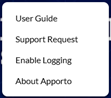
Click the Help  menu to access the Apporto User Guide, the Support Request form, and version information About Apporto.
Now that you’re all setup, the next time you want to access the URP Virtual Desktops you just need to go to https://apps.fau.edu
If you have any issues connecting you the virtual desktop send an email to: bmcconne@fau.edu