FindTime Poll
Creating a FindTime poll Instructions
Outlook Desktop App
-
Create a new email.
-
Add the email address of the recipients in either the To or Cc fields.
-
In the Message tab select New scheduling poll.
-
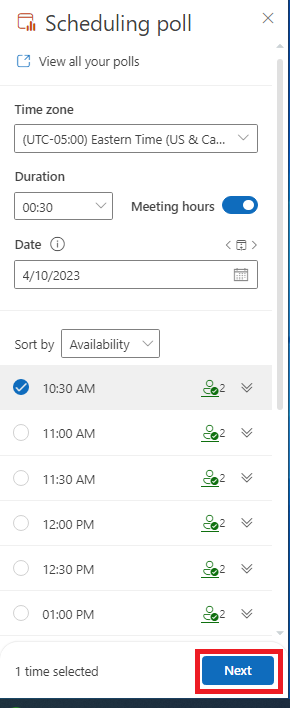
Set the Duration of your meeting.
-
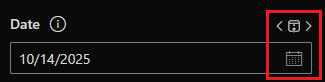
Select the Date (choose multiple dates using the arrows or calendar icon. You may need to turn off meeting hours)
-
Select Times for the meeting and click Next.
-
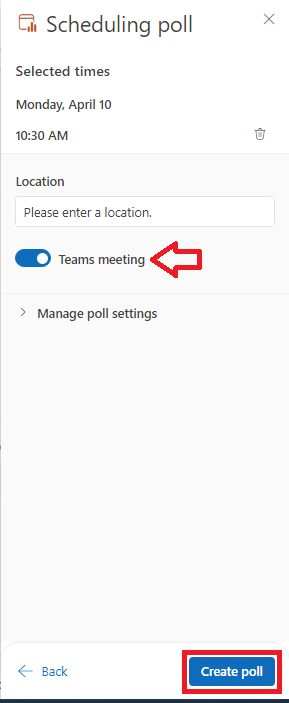
(optional) Enter a Location for the meeting.
-
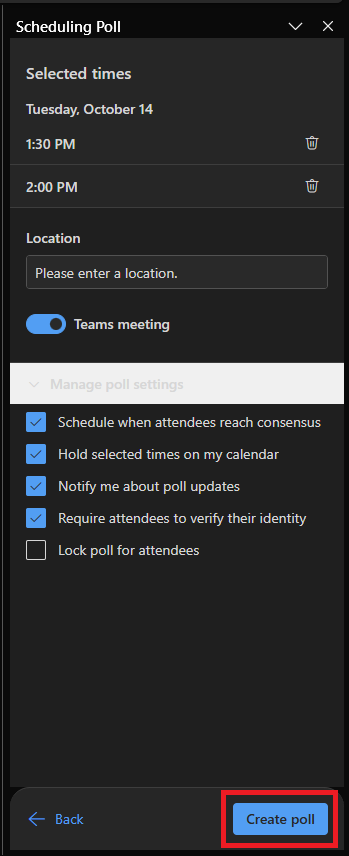
Review the Selected times and click create poll which will add it to your email.

Outlook Web
-
Create a new email.
-
Add the email address of the recipients in either the To or Cc fields.
-
Click on the body of the email. You may then need to scroll the top ribbon to the right to see the Scheduling Poll. Select Scheduling Poll.
-
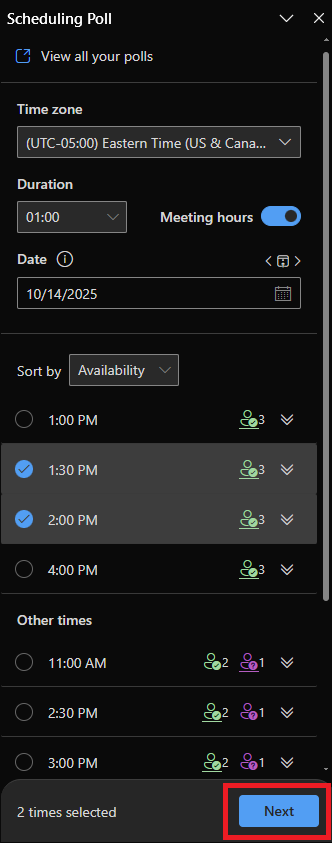
Set the Time zone and Duration of your meeting.
-
Select Dates and Times for meeting and click Next.
-
(optional) Enter a Location for the meeting.
-
Review your Selected times, make sure Teams Meeting button is enabled and click Create Poll.