Email Migration

How to migrate email account to health.
Step 1
-
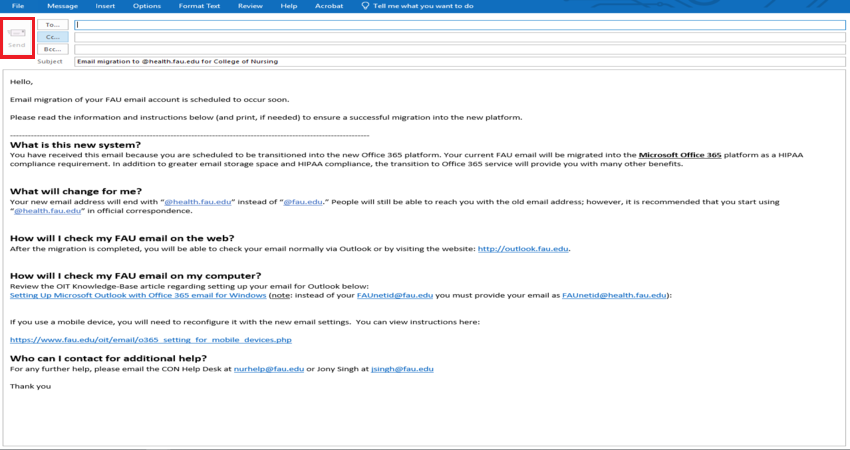
Send an email to the person/people whose email account is being migrated. Use this template.
Email Template
If you receive a pop-up message stating "This type of file can harm your computer", ignore it and click on "Keep".
-
Provide the person's email. If you have more than one email address, type the email addresses in the "Bcc" section".
-
Once complete, click send and continue to step 2.
Step 2
-
Go to https://helpdesk.fau.edu/TDClient/2061/Portal/Requests/ServiceDet?ID=38911
and click on "Submit a Request".

-
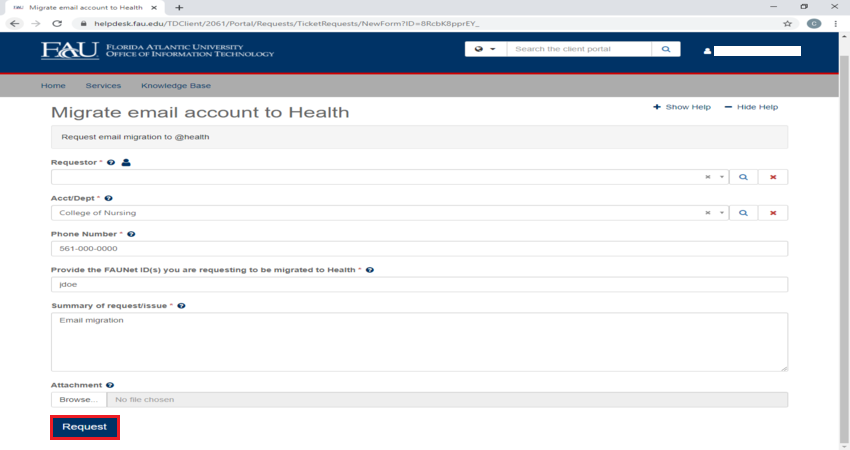
Fill out the form as shown in the picture below and click on request.
-
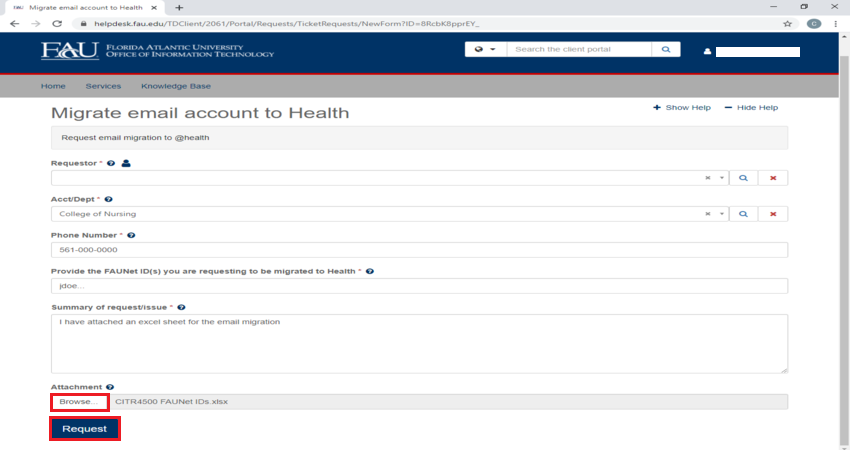
If you have multiple FAUNet IDs or requests, click on "Browse" and attach an excel file containing the FAUNet IDs. Click on Request to submit the form.
-
Once the email migration is complete, the email address will be in the following format style "jdoe@health.fau.edu.
-
IMPORTANT! After the migration you will not be able to use Owl Mail or Gmail to access your FAU email account. Instead use http://outlook.office.com/ or Outlook desktop app.